Working with Content Kits: Edit, Export, Share
Your Content Kit is a complete set of ready-to-publish content generated from a single input. Here's how to navigate, edit, export, and share everything inside it.
4 min read

Find your kit in Your Library
Open Your Library from the sidebar. Your kits are organized by status: Ready to Publish, Processing, Failed, and Earlier. Use the search box to find a kit by name. The most recent kits appear at the top.
Open a kit
Click any kit to open it. Inside, your content is organized into two main sections: Visual Content and Written Content.
Browse Visual Content
The Visual Content section contains your video clips with captions and carousel slides. Each piece is shown as a card with a preview. The carousel is called Instagram Carousel. Download captioned clips at up to 1080p (output matches your source resolution), ready for any platform. Each clip is optimized for vertical (9:16) short-form content. If the original video had multiple speakers, open the clip and switch between Single Speaker and Split Screen.
Browse Written Content
The Written Content section contains your blog draft (a Substack card), plus tabs for LinkedIn, Twitter/X, Email, TikTok, YouTube, and Video Script. The Instagram caption is not a tab. It sits with the carousel and clips as their Post caption.
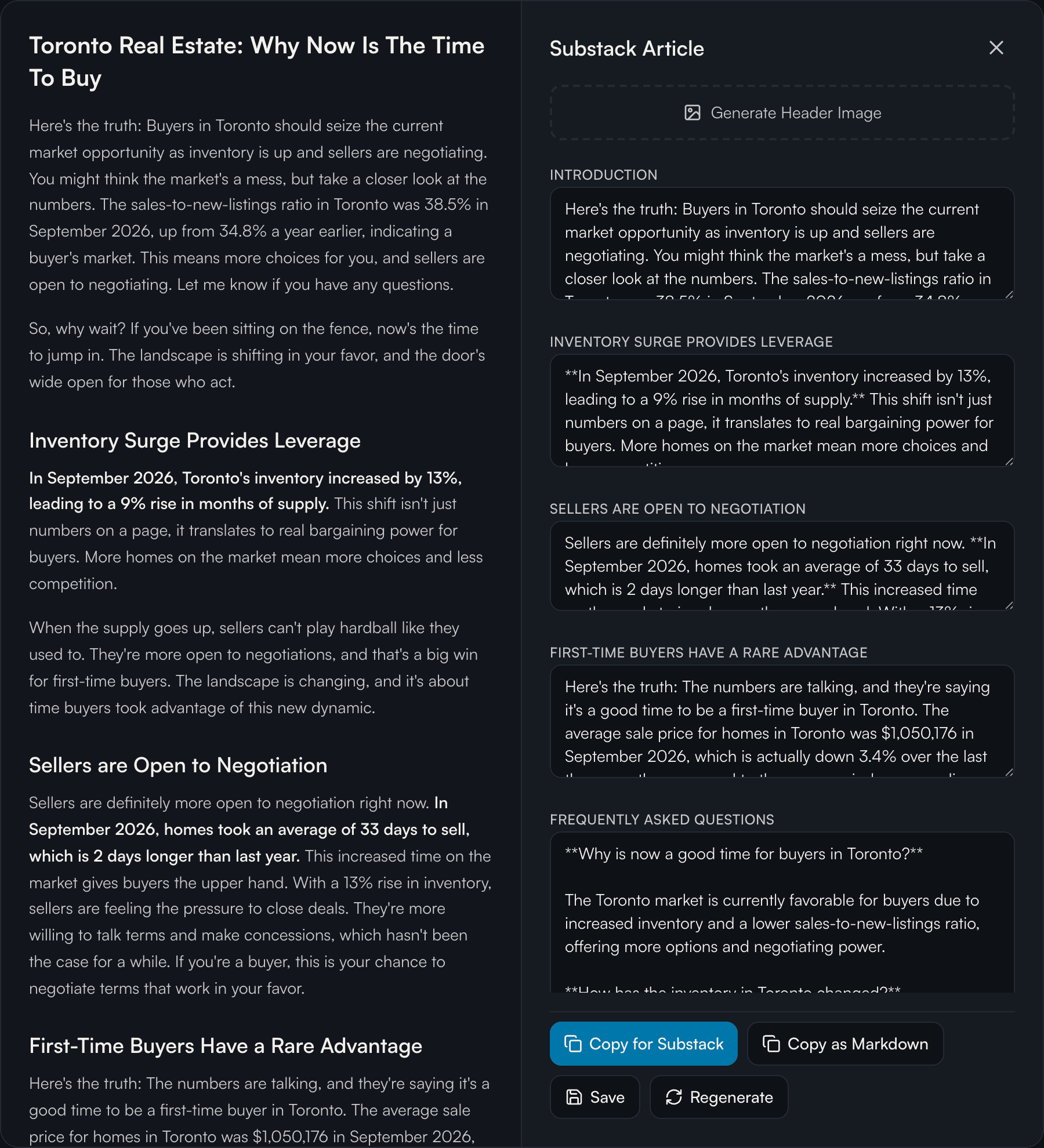
Edit any post
Click on any piece of written content to edit it directly. Pick a tab (LinkedIn, Twitter/X, Email, TikTok, YouTube, or Video Script), edit the text, then click Save. Regenerate rewrites the post, and Copy copies it. The blog draft opens in the Substack Article editor, where you can Copy for Substack or Copy as Markdown. To edit an Instagram caption, open the carousel or clip and change its Post caption.
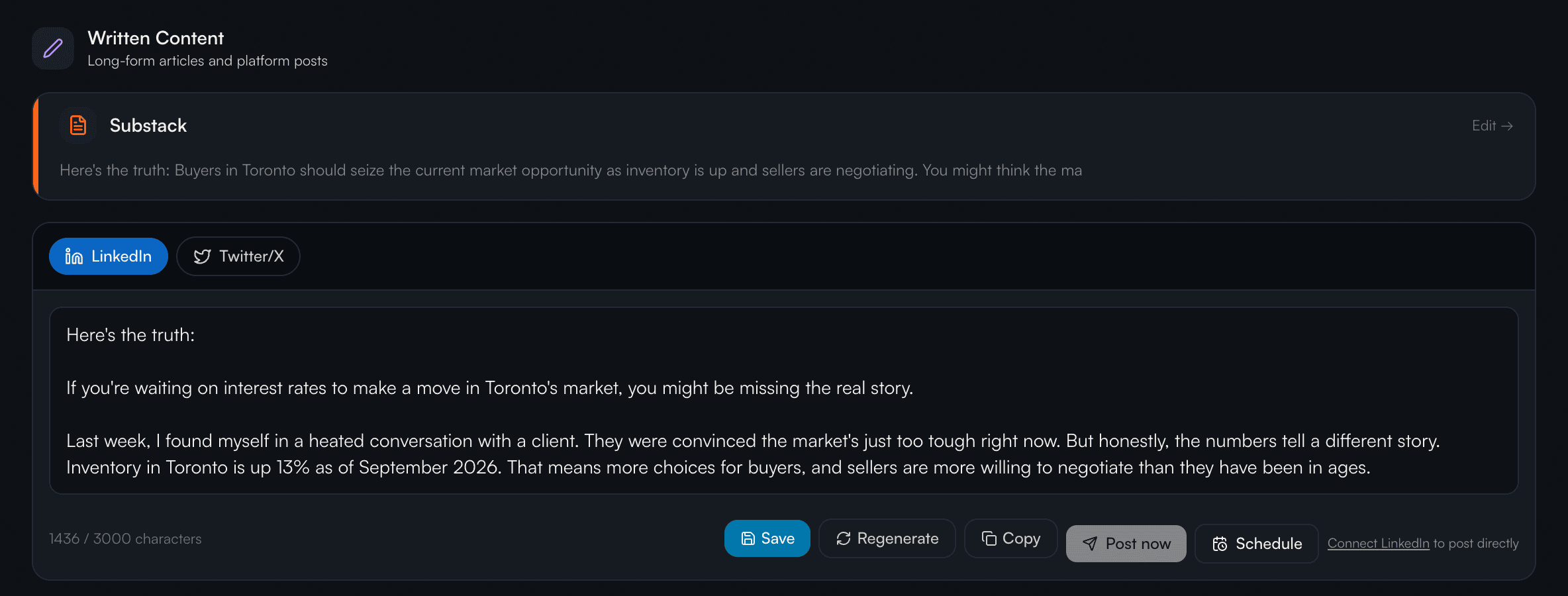
Edit captions and clip text in the clip editor
Open any clip and you’ll get the full editor. Use the Trim bar to shorten the clip (you can only cut it shorter, and Reset to original undoes it). Pick from 8 caption styles, drag the caption block anywhere on the video, drag a corner handle to resize the text, and click any transcript line to fix a mis-transcription. The preview jumps to that moment so you can see your edit live. The post caption that goes alongside the clip is also editable inline.
Share or copy
Copy any text to clipboard with one click. Download video clips with Download 1080p, or choose Download without captions if you caption elsewhere. Post or schedule from the clip, carousel, or written tab, or leave it in Your Library for later.
Ready to explore your kits?
Open Your LibraryLog in to view your generated content.